Maze Connect
Maze Connect is a pair of companion apps — a Linux desktop app (Qt6/QML/C++) and an Android app (Kotlin/Jetpack Compose) — that let your phone and your Maze Linux desktop monitor and control each other over the local network.
Overview
| Component | Platform | Stack |
|---|---|---|
| Maze Connect Desktop | Linux (Maze Linux) | Qt6, QML, C++ |
| Maze Connect Mobile | Android | Kotlin, Jetpack Compose |
On the desktop, the connection is held by the maze-connect app itself: it lives in the system tray and starts with your session. (mazeconnectd is a headless alternative for a systemd --user service; run one or the other, not both — they share the same port.)
Both apps must be installed and paired before use. All communication happens directly between the phone and the desktop on the same network — nothing is routed through a third-party server.
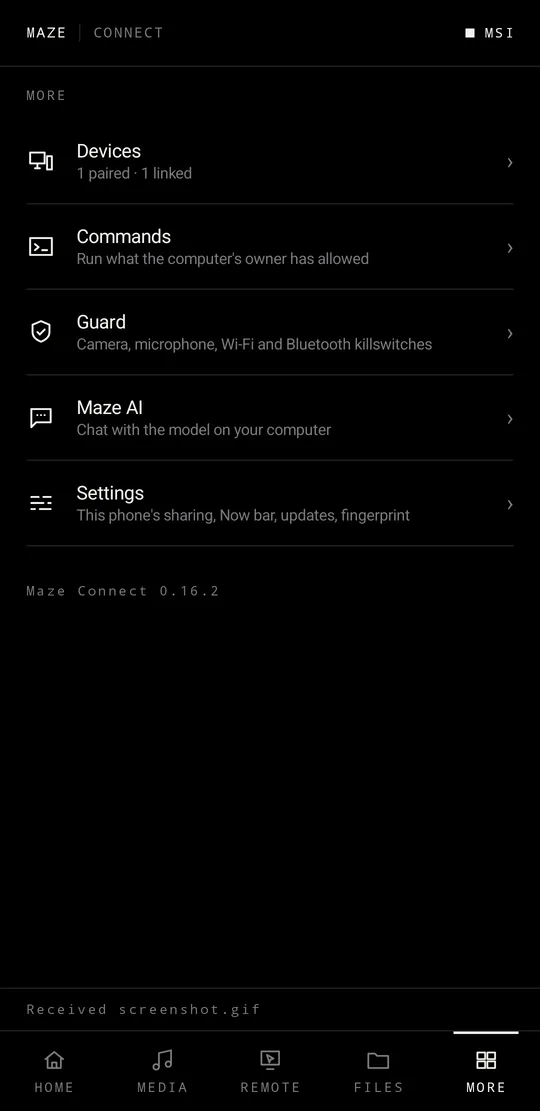
On the phone, the app is organised into five tabs — Home, Media, Remote, Files and More. The More tab holds Devices, Commands, Guard, Maze AI and Settings.
Pairing & Security
Pairing uses mutual TLS 1.3. Each side authenticates the other with a certificate, and the connection is confirmed with a 6-digit verification code shown on both devices. After the first successful pair, both sides pin each other's public key — the phone pins the computer's key and the computer pins the phone's. Later connections are rejected if either key ever changes.
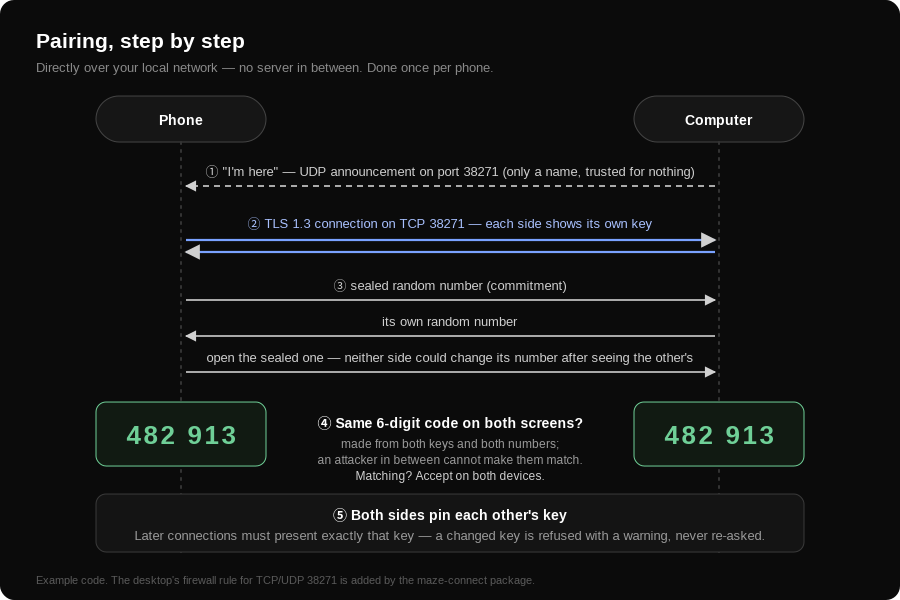
Pairing steps:
- Open Maze Connect on the computer (tray icon) and on the phone, on the same network.
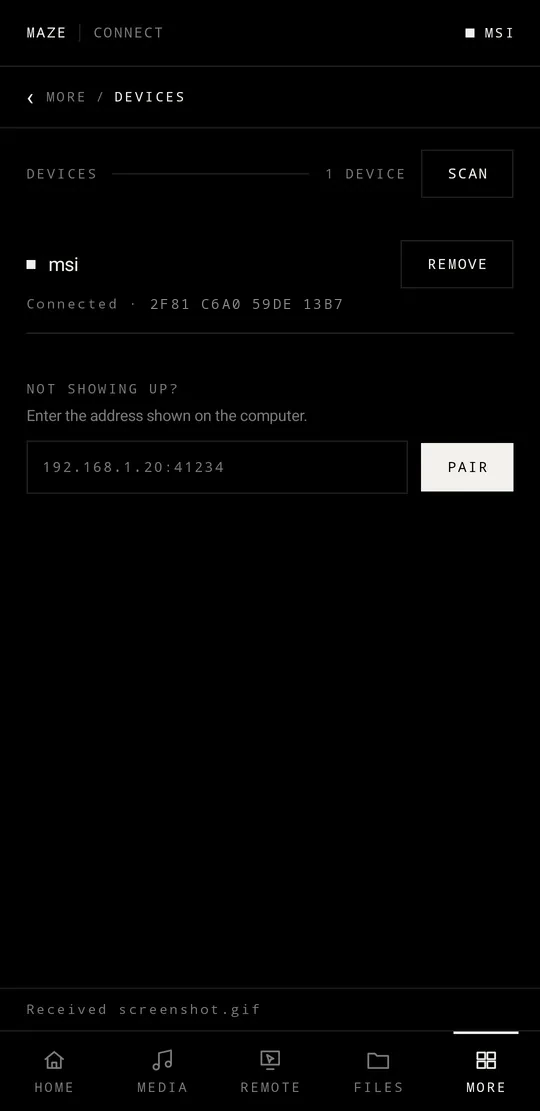
- On the phone go to More → Devices, tap Scan, then Pair next to your
computer. (Or start from the computer: Devices → Pair next to the phone.)
Computer not listed? Type the address shown on the computer's Dashboard under
Pair by address (e.g.
192.168.1.50:38271) and tap Pair. - Confirm that the 6-digit code shown on both screens matches.
- Accept on both the phone and the computer — pairing completes only when both sides have accepted.
Once paired, each side stores the other's pinned key, and the phone reconnects automatically whenever both devices are on the same network.
Connection resilience: a heartbeat keeps the session alive, and if the connection drops (network change, desktop sleep, etc.) the phone reconnects automatically in the background — no need to reopen the app or re-pair.
Features
Dashboard
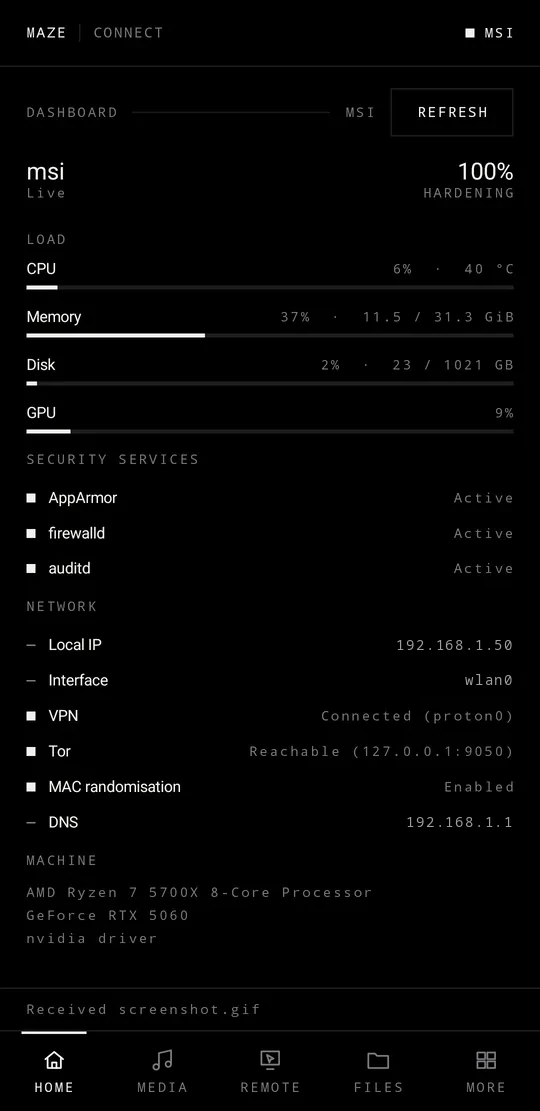
On the phone: live system metrics of the computer (CPU, RAM, GPU) alongside summary counts for hardening status, running services, and network state.
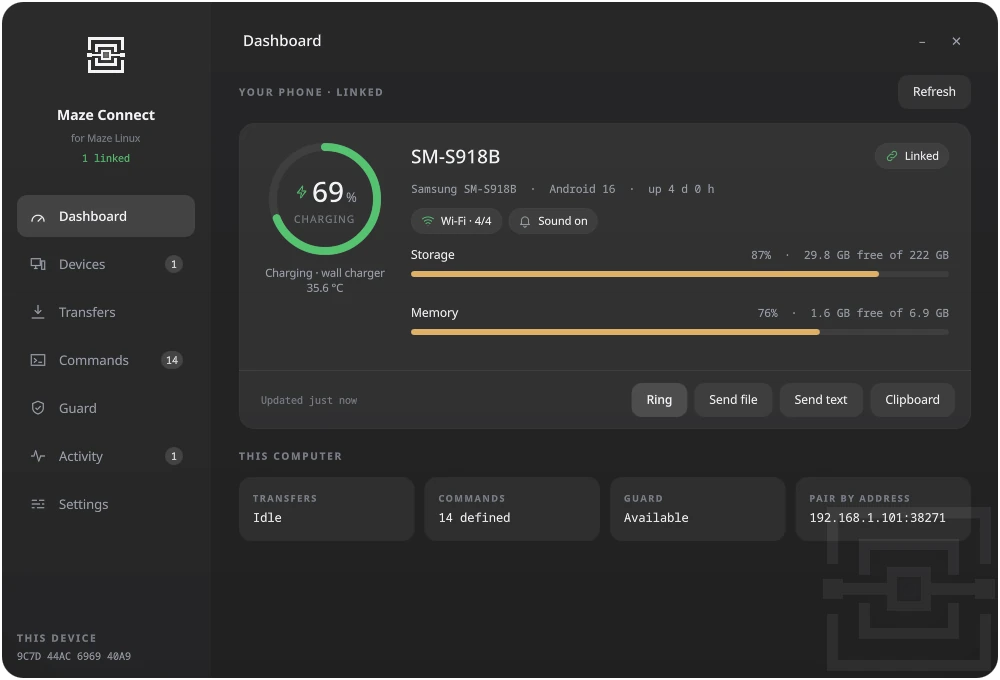
On the desktop: the Dashboard shows each paired phone — battery (level, charging state, temperature), storage, memory, network and ringer mode. The desktop also notifies you when the phone's battery runs low and when it is fully charged.
Media
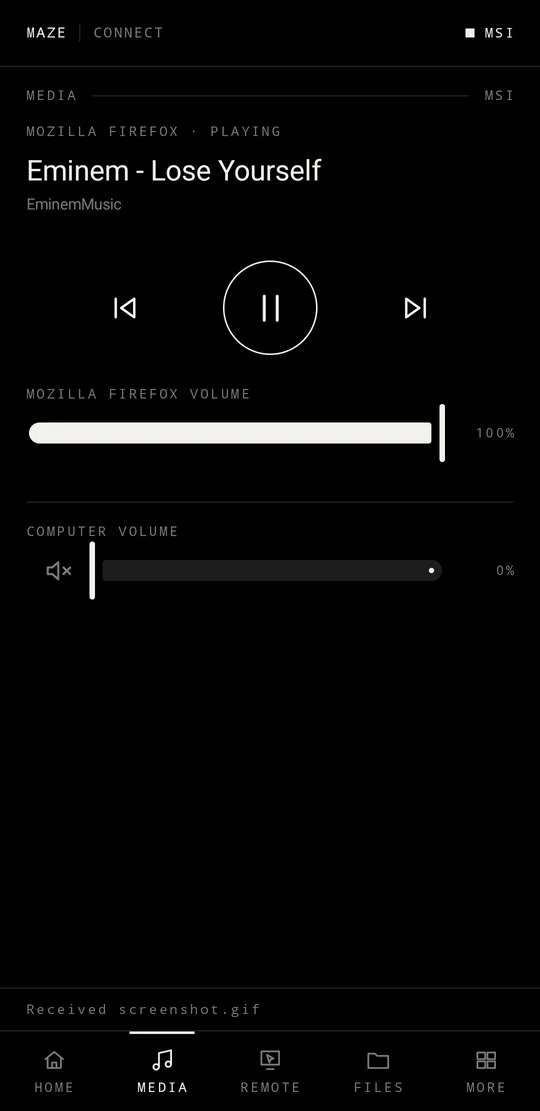
See what is playing on the desktop and control it from the phone: previous / play-pause / next, the player's own volume, and the computer's master volume.
Remote
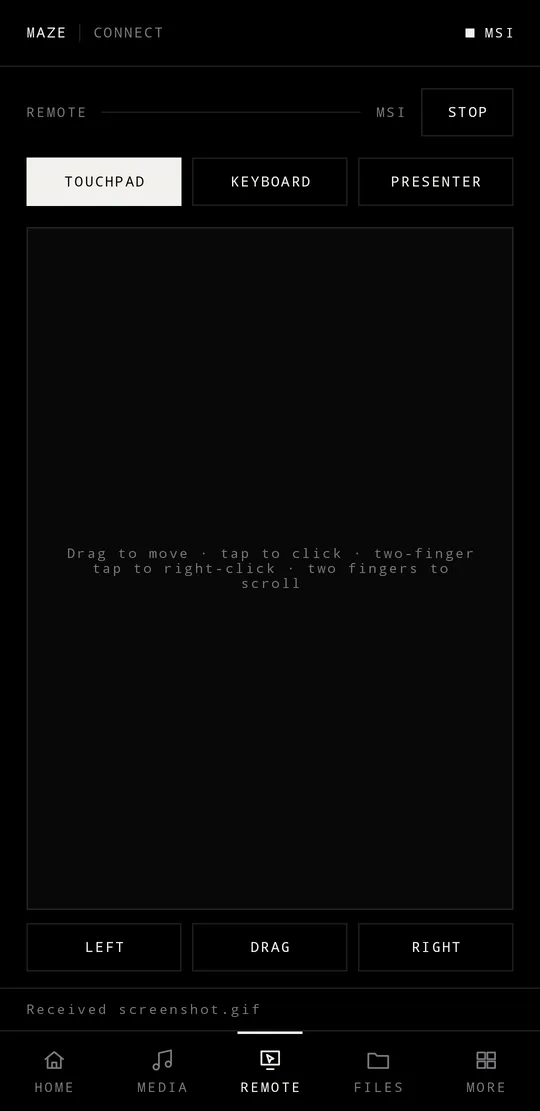
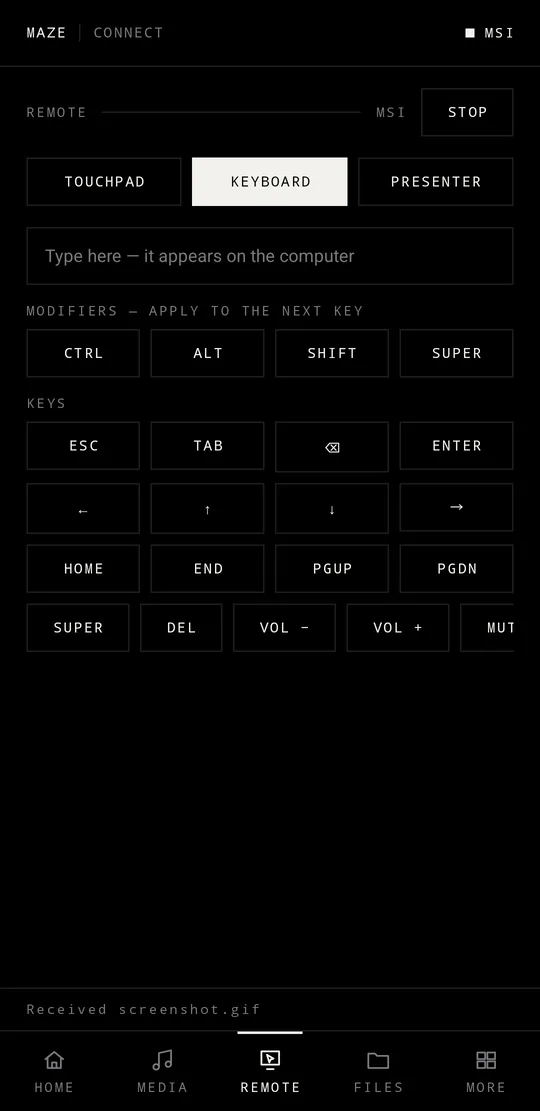
Use the phone as an input device for the desktop, in three modes:
- Touchpad — drag to move, tap to click, two-finger tap to right-click, two fingers to scroll; separate left, drag and right buttons.
- Keyboard — type text straight into the focused window, with modifiers (Ctrl, Alt, Shift, Super) and navigation, editing and volume keys.
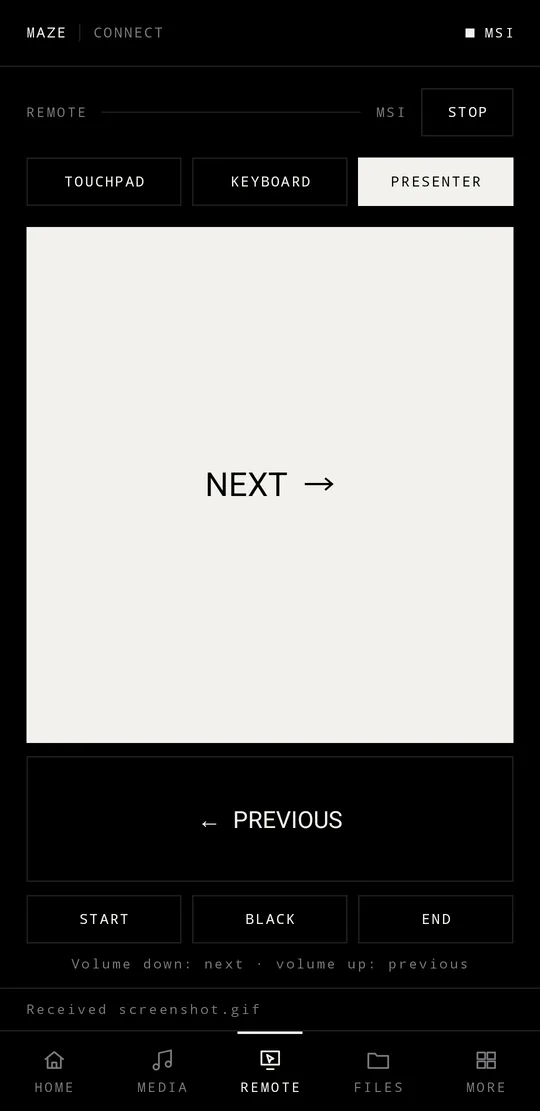
- Presenter — large next / previous buttons plus start, black-screen and end; the phone's volume buttons also step through slides.
Full control needs permission on the computer. Touchpad and Keyboard are allowed separately for each phone. The first time a phone asks for control, the desktop asks you, and then KDE shows its own permission dialog. While control is active, a banner with a Stop button stays on screen. Presenter mode does not need this permission.
Kill switches
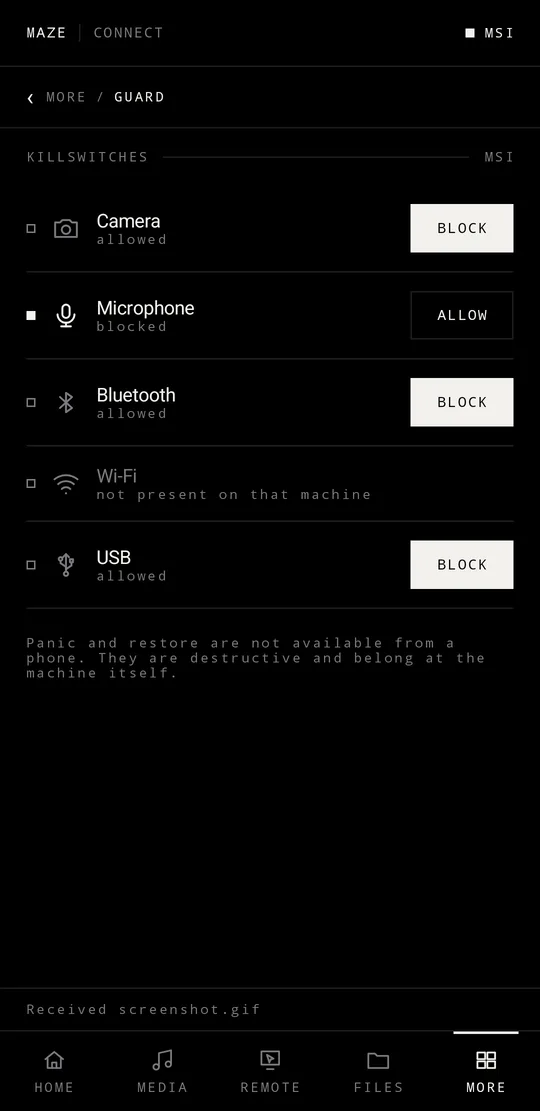
The same switches as Maze Hardware (through the maze-guardd broker): toggle the camera, microphone, Wi-Fi, Bluetooth and USB kill switches from the phone. Each toggle requires confirmation before it takes effect.
Commands
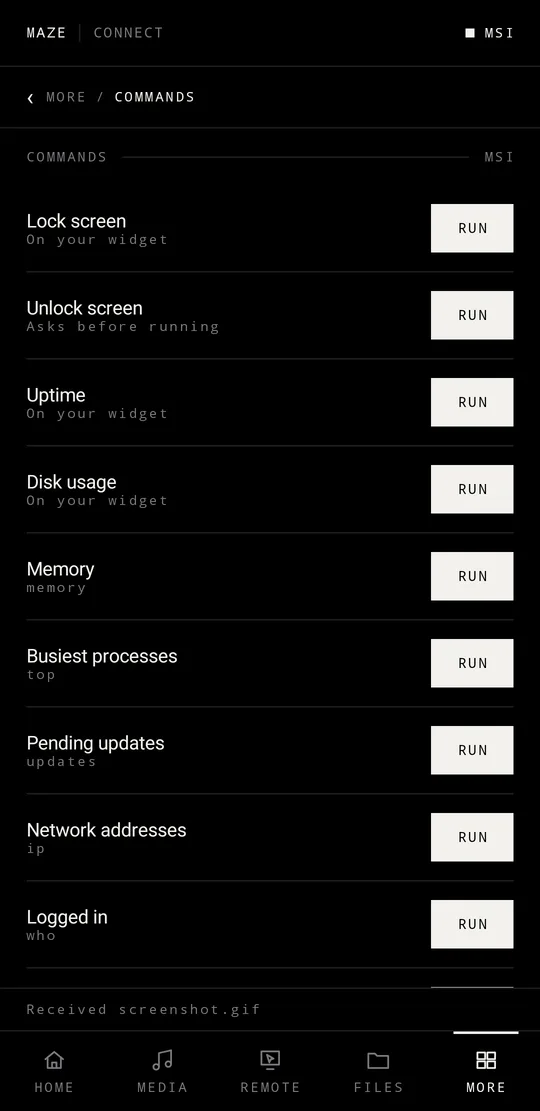
Trigger commands defined on the desktop directly from the phone. Commands are stored in commands.json on the computer and can only be added or edited there — on the desktop's Commands page you can add a command and try it out. The phone can only trigger existing ones. Commands with confirm set require an extra confirmation step on the phone before running.
Maze AI
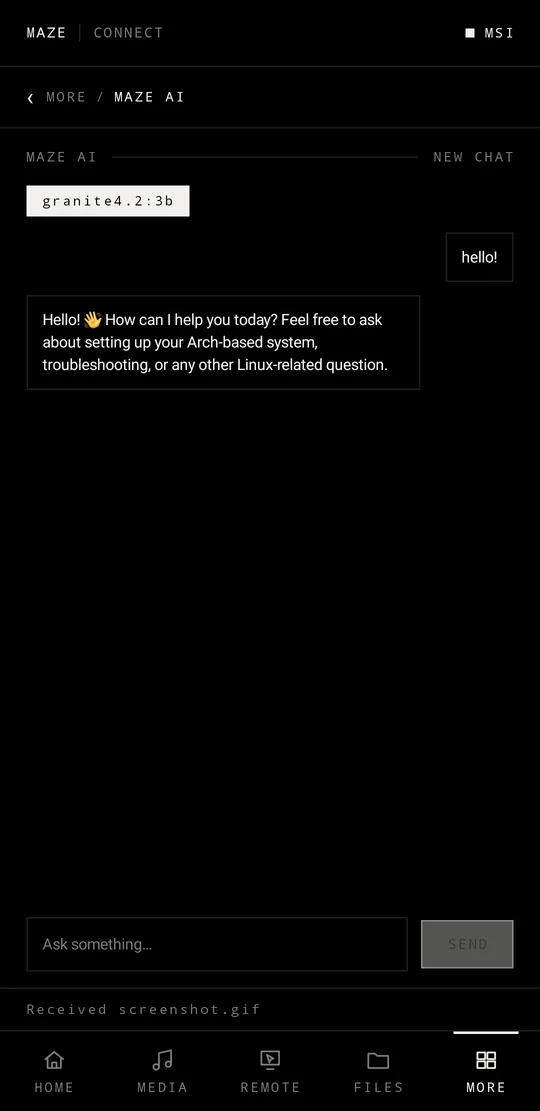
Chat with the local Ollama model running on the desktop, from your phone. Inference stays on the desktop — nothing is sent to a third party.
File Transfer
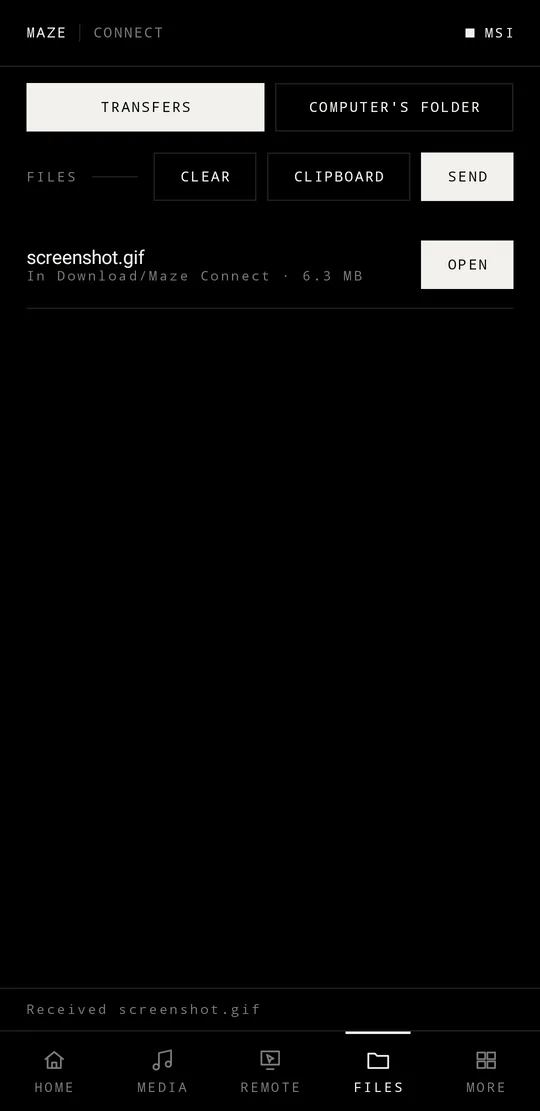
Two-way file transfer between phone and desktop. From the computer, you can also drag a file onto the phone's card to send it.
Shared Folder
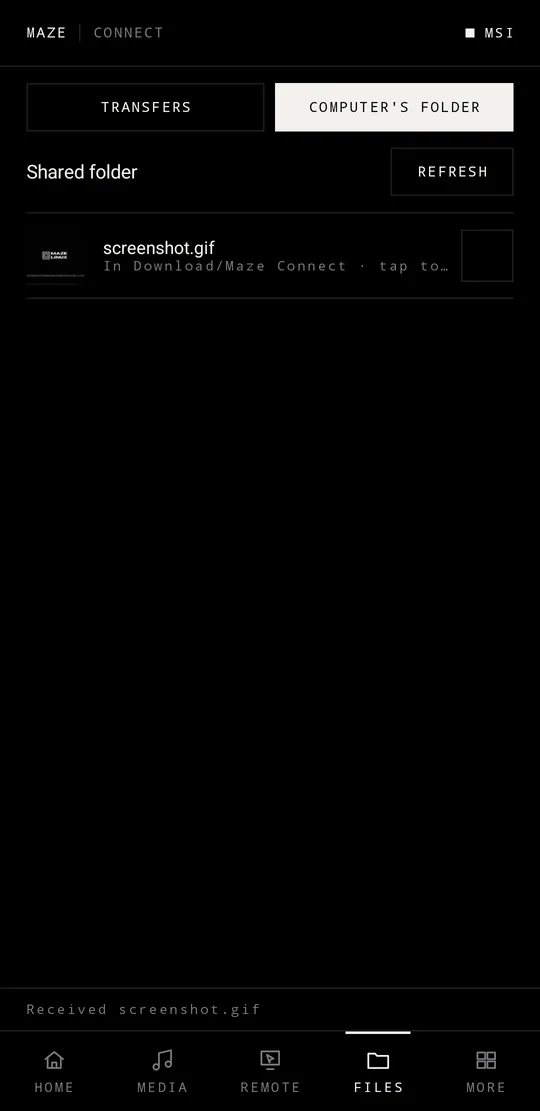
The computer's ~/Maze Connect Shared folder can be browsed from the phone, and files in it can be downloaded. Images get a preview. The phone cannot leave this folder — nothing outside it is visible.
Android Share Menu Integration
Share to your desktop directly from any Android app's native Share menu.
Send to Phone
From the computer, use Send text to send a note or a link to the phone; it opens via a notification on the phone.
Clipboard Sync
Keeps the clipboard in sync between phone and computer. Each side has its own switch, and both are off by default. Anything copied from a password manager is never sent. On Android, the clipboard is sent while the app is open; a Quick Settings tile is also available for it.
Find My Phone
Rings the phone at full volume — even when it is on silent — until you tap Found it or 2 minutes pass. The button is on the desktop's phone card and in the tray menu.
Lock When the Phone Leaves
If the selected phone drops off the network and does not come back within the time you set, the computer's screen locks. Off by default.
Unlock with Your Phone
Unlock the computer with your phone's fingerprint.
Setup:
- On the phone, go to Settings → Approvals → Set up.
- On the computer, open Settings, check that the codes on both screens match, and select Allow.
The key is created in and never leaves the phone's secure hardware. Every unlock asks for your fingerprint, and adding a new fingerprint on the phone invalidates the key — you will need to set it up again.
Approve sudo and Administrator Prompts
The same phone approval can answer sudo, polkit and run0 prompts — for example when Partition Manager or Discover asks for administrator rights.
- The two-digit code is made on the computer, by root, and shown only in the terminal or the polkit dialog — it is never sent to the phone. You type it on the phone, and it becomes part of what the phone signs, so the approval only verifies for the prompt in front of you. A sudo started out of your sight (for example by malware running in your session) shows its code where you cannot see it, so it cannot be approved with a reflexive tap.
- If no phone is connected, no answer arrives, or you are in an SSH session, you are asked for your password as usual.
- Setting this up turns nothing on automatically — each prompt type is enabled separately.
To undo everything:
sudo maze-connect-approvers pam disable all
To turn off a single service, use pam disable sudo or pam disable polkit instead. This removes the lines added to /etc/pam.d and the systemd drop-in added for polkit. Registered phones are not removed; to remove them as well, run sudo maze-connect-approvers remove <user> --all.
Lock Your Phone from the Computer
The phone's card on the desktop has a Lock button. To use it, turn the setting on in the phone app and grant Android's device administrator approval when asked. Only the "lock the screen" right is requested.
Activity & History
The desktop's Activity page shows a session log, including rejected connections. Activity → History keeps a permanent record of what each device did. It is stored in a file only you can read, and it records only names and results — never content.
On the Phone
- Now Bar / Live Update — the computer's status on the lock screen.
- Quick Settings tile for clipboard sync.
- App shortcuts from the launcher icon.
Home Screen Widgets
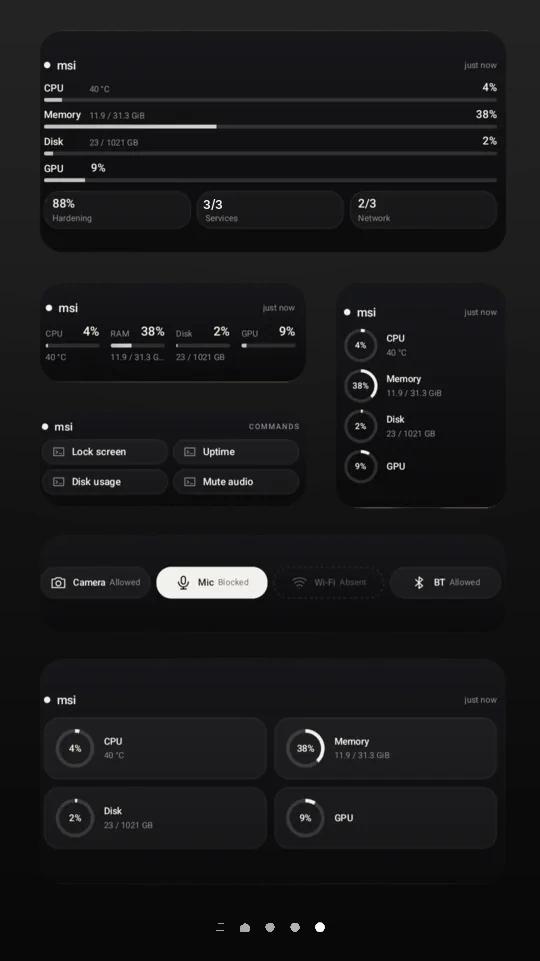
Android home-screen widgets, usable without opening the app:
- Dashboard — in four layouts: detailed, compact, mini and tile.
- Commands — also available in a narrow version.
- Controls — the hardware kill switches.
Multi-Computer Support
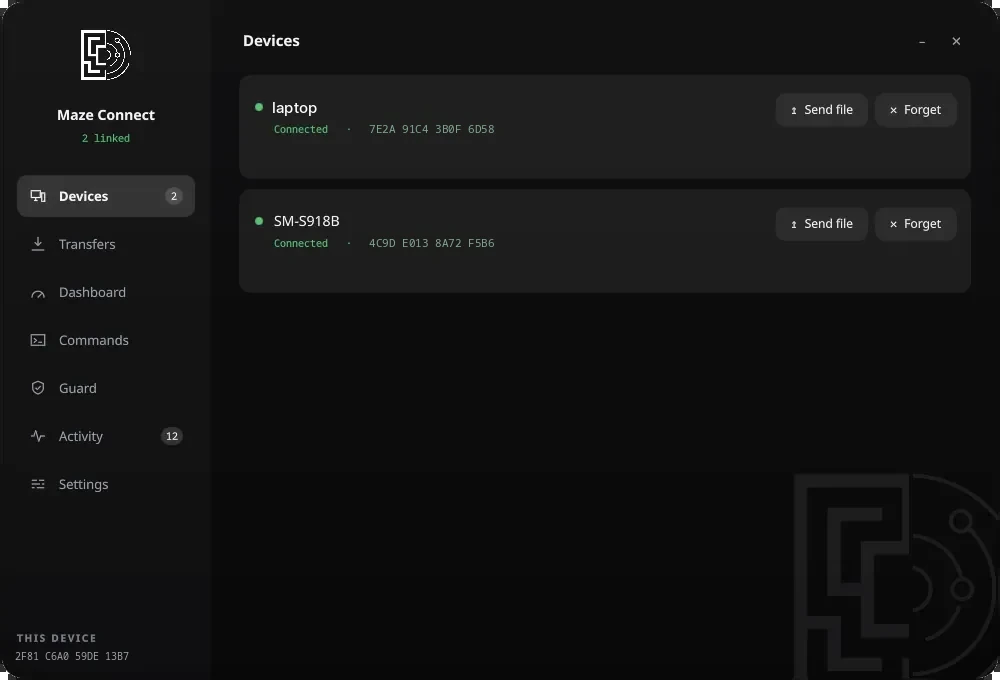
The phone can be paired with and connected to multiple desktops at once, with instant switching between them. Each home-screen widget independently chooses which paired computer it displays.
Installation
Desktop: already installed — maze-connect is part of maze-meta, so it
ships with every Maze install. It starts with your session and sits in the
system tray; you can also launch it from the application menu.
Firewall: the installer opens TCP and UDP port 38271 for Maze Connect. Pairing happens directly between phone and desktop on your local network — nothing is routed through a third-party server.
Android: install the Maze Connect APK. Download the APK.
Permissions (Android)
The app does not request storage access. Files are read and written through Android's own file picker (Storage Access Framework), so the app only touches the files you pick.
Most permissions are granted at install time. Asked for at runtime: Notifications, and on Android 17 and later Local network access.
| Permission | Used for |
|---|---|
| Network access | Communicating with the paired desktop |
Local network access (ACCESS_LOCAL_NETWORK, Android 17+) | Finding and reaching the computer on your Wi-Fi (asked at runtime on Android 17) |
| Wi-Fi multicast | Finding computers on the local network |
| Wake lock | Keeping the Wi-Fi link to the computer alive while the phone's screen is off |
| Vibration | Find my phone |
| Notifications | Connection status, "Send to phone", transfers, Find my phone (asked at runtime) |
Foreground service (connectedDevice) | Keeping the connection running in the background |
| Live Update notification | Now Bar / lock-screen status of the computer |
USE_BIOMETRIC | Fingerprint for unlocking the computer and approving prompts |
HIDE_OVERLAY_WINDOWS | While the approval screen is open, hiding other apps' overlay windows (Android 12+) so nothing drawn on top can steer the Approve tap. The screen also ignores touches that pass through another window. |
| Device administrator — "lock the screen" only (optional) | Locking the phone from the computer |
Never requested: location, contacts, phone state, storage, notification listener, accessibility.
Troubleshooting
The phone cannot find the computer (Android 17). Android 17 requires a
separate local network permission (ACCESS_LOCAL_NETWORK). If it was denied,
the app cannot see anything on your Wi-Fi. Open Android Settings → Apps →
Maze Connect → Permissions and allow Local network access (the exact
name can differ by phone maker), then open the app again.