After Install
The first time you boot into your installed Maze Linux system, the Maze Welcome app opens automatically. It introduces key features and self-removes its autostart entry so it only appears once.
1. Maze Welcome App
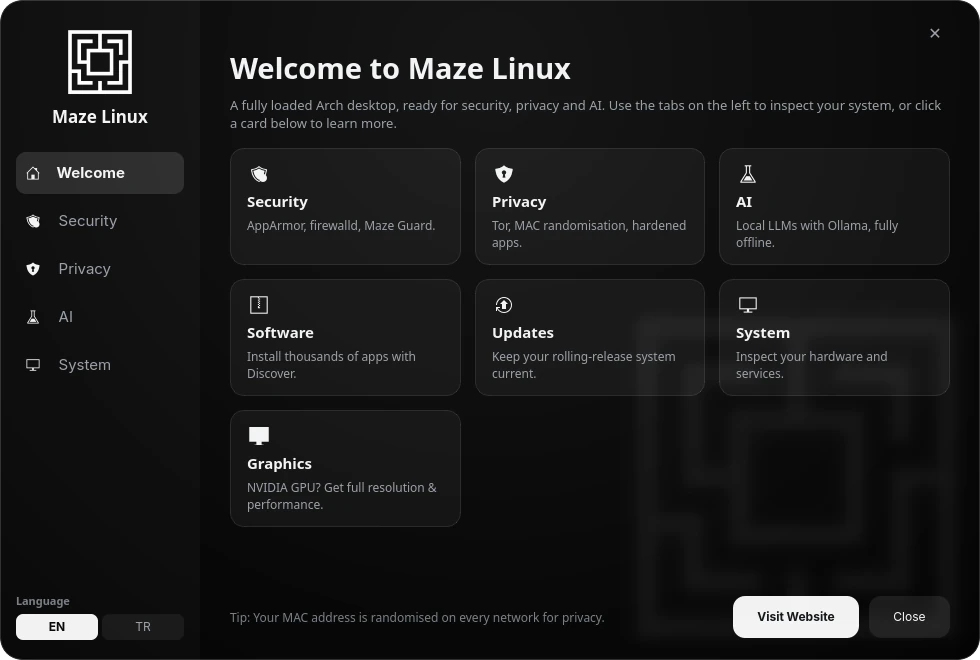
The Welcome app launches on first login and has five tabs — Welcome, Security, Privacy, AI and System. It informs rather than acts: it shows which security services are running, whether the Secure Boot chain was signed, MAC randomization, installed AI models and your hardware, plus a short "first steps" checklist. The only button that leaves the app opens the Maze website.
It will not appear again after the first run; open it any time with
maze-welcome. For actions, use the Control Center (below).
2. Update the System
paru -Syu
Maze uses Arch Linux's rolling release model. Updates are incremental and frequent — run this regularly. paru -Syu updates the official repos, the [mazelinux] repo and the desktop apps that come from the AUR (Joplin, Session, Upscayl, ONLYOFFICE, Claude Code); sudo pacman -Syu alone skips those AUR apps. See Updating.
3. Open Maze Control Center
The Maze Control Center is your central dashboard. Launch it from the application menu or run:
maze-control-center
It has seven pages — Overview, Security, Privacy, Network, AI, Hardening (a security score) and Maintenance — showing the live state of the security services, MAC randomization, Tor, the Ollama runtime and system upkeep. Every privileged action is shown as a copyable terminal command — nothing runs without you explicitly executing it.
4. Check Security Services
All of the following are enabled and running from first boot. Confirm they are active:
systemctl status apparmor firewalld auditd
systemctl status maze-guard maze-sentinel
Maze Guard monitors the network you are connected to for MITM and ARP-spoofing attacks; its window starts hidden in the system tray. Maze Sentinel sends a desktop notification when something security-relevant changes (a new admin account, a new SSH key, a sudoers edit, a new SUID binary).
Or run the whole health check at once:
sudo maze-doctor
5. Turn On the Opt-in Protections
Three things are installed but off until you decide:
-
MAC randomization — open Maze Cloak from the menu and switch it on (pick the interface and, if you like, a rotation interval). See Privacy.
-
Real-time malware protection — QLAM's scanner service:
sudo systemctl enable --now qlamd.service qlam-update.timer sudo systemctl start qlam-update.service # first signature download, ~250 MB -
Tor routing / encrypted DNS / I2P — start them from Entropy Shield when you want them. See Entropy Shield.
6. Set Up Flatpak Apps (Optional)
Flathub is added automatically on the first boot that has an internet connection (maze-flatpak-setup.service). Install additional apps from KDE Discover or the terminal:
flatpak install flathub <app-id>
flatpak update
7. AUR Access with paru
paru is the preinstalled AUR helper. Install any AUR package with:
paru -S <package-name>
paru searches both official repos and the AUR, compiles from source in an isolated environment, and installs the result.
8. Configure Firefox
Firefox is configured through system-wide enterprise policies (/etc/firefox/policies/policies.json), so every profile — including new ones — gets them:
- Telemetry, Studies, Pocket, and sponsored content are disabled.
- Tracking protection, fingerprinting protection, and cryptomining protection are on.
- DNS-over-HTTPS is enabled.
No configuration needed — it is already private. To use a different DNS-over-HTTPS provider, go to Settings → Privacy & Security → DNS over HTTPS.
9. Set Up Ollama (Local AI)
Ollama is installed and starts on boot automatically, but ships with no models. Pull your first one (needs internet; a few GB):
ollama pull llama3
Check the service status:
systemctl status ollama
See the AI & Development page for model recommendations and GPU acceleration details.
10. Encrypted DNS
Maze does not run a standalone DNSCrypt service. Encrypted DNS is one of the layers Entropy Shield turns on when you start it — together with its Tor transparent proxy and I2P options.
entropy-shield # or launch it from the menu
Out of the box the resolver is systemd-resolved, with multicast DNS and LLMNR switched off so the machine does not announce itself on the local network. Firefox uses DNS-over-HTTPS on its own. See Privacy.
11. Firmware Updates
fwupd is preinstalled and fwupd-refresh.timer keeps its metadata current. Check for and install firmware updates:
fwupdmgr refresh
fwupdmgr update
12. Virtualization
Virtualization is not installed by default — this is deliberate, to keep the ISO lean. The whole KVM stack is one command away:
sudo pacman -S qemu-desktop libvirt virt-manager edk2-ovmf
sudo systemctl enable --now libvirtd
sudo usermod -aG libvirt,kvm "$USER"   # log out and back in
If you prefer VMware Workstation, Maze ships a helper that sets it up for you:
maze-install-vmware
13. Change the Default Shell (Optional)
Zsh with Oh My Zsh is the default shell. If you prefer bash:
chsh -s /bin/bash
Key Directories
| Path | Purpose |
|---|---|
/usr/local/bin/ | Maze tools from maze-tools (maze-doctor, maze-control-center, maze-hardware, …) |
/usr/bin/maze-* | Boot-chain and snapshot tools (maze-sb-sign, maze-boot-check, maze-rollback, …) |
/usr/local/lib/maze/ | Shared Python libraries for the Maze GUIs (maze_status, maze_ui, maze_i18n) |
/etc/sysctl.d/99-maze-hardening.conf | Kernel hardening parameters |
/etc/audit/rules.d/maze.rules | Maze audit rule set |
/etc/ssh/sshd_config.d/00-maze-hardening.conf | SSH server hardening |
/etc/kernel/cmdline | Kernel command line baked into the UKI |
/var/lib/maze-secureboot/ | Your machine's Secure Boot key (MOK.*) and ENROLLMENT.txt |
/var/log/maze-install-summary.txt | What the installer did, and every warning it raised |
/etc/NetworkManager/conf.d/99-maze-cloak.conf | Written by Maze Cloak while it is on, removed when it stops |